
Honey Bee IPTV on Windows PC and Mac
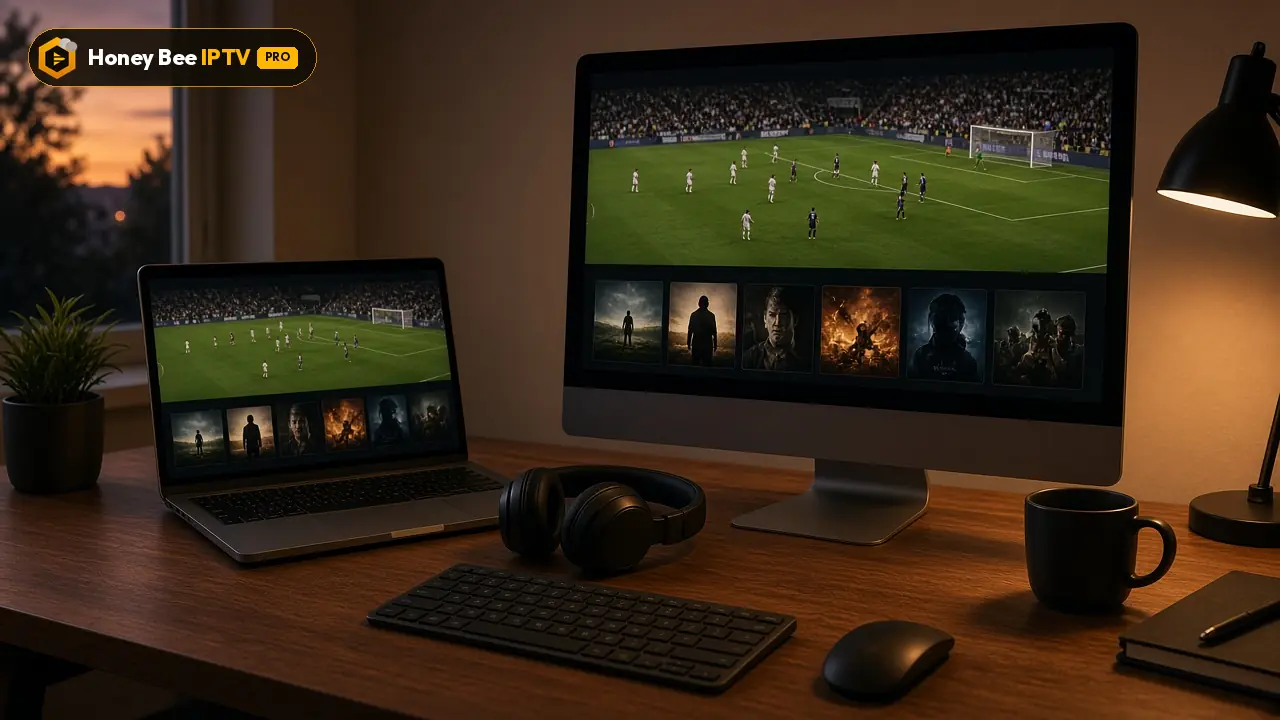
A laptop or desktop is a handy extra screen for Honey Bee IPTV: keep a game running while you work, watch a movie on a long flight layover, or connect the computer to a TV with HDMI. Here is how to set it up on Windows and macOS.
Jump to a section
- Your options on a computer
- Option 1: IPTV Smarters on Windows
- Option 2: IPTV Smarters on Mac
- Option 3: VLC media player (Windows and Mac)
- Option 4: a web player
- Watching on the TV with your computer
- Getting smooth playback on a computer
- Multi-view on a big monitor
- Troubleshooting on PC and Mac
- Safety on computers
- Get started on your computer
- Keyboard shortcuts that make life easier
- Watching while you work
- Getting the guide in VLC
- Chromebooks and Linux
- Old computer, smooth stream
- Using your computer to manage other devices
- Keep your login private
Your options on a computer
Unlike TVs, computers give you several ways to watch Honey Bee IPTV:
| Option | Windows | Mac | Login type | Best for |
|---|---|---|---|---|
| IPTV Smarters desktop | Yes | Yes | Xtream | Full experience with live TV, movies, series and guide |
| VLC media player | Yes | Yes | M3U | Quick and free; simple channel list |
| Web player | Yes | Yes | Xtream | No install; good for occasional use |
| Other Mac App Store players | No | Yes | Xtream or M3U | Native Mac look |
For most people, IPTV Smarters is the best starting point. Use VLC if you want something quick and free.
Option 1: IPTV Smarters on Windows
- Open your browser and go to the official IPTV Smarters website. Download the Windows version.
- Run the installer. If Windows SmartScreen shows a warning, choose More info > Run anyway only if you downloaded from the official site.
- Open IPTV Smarters and choose Login with Xtream Codes API.
- Paste your username, password and server URL from our WhatsApp message (use WhatsApp Web on the computer for easy copy and paste).
- Click Add user. Channels, movies, series and the guide load in a minute or two.
Option 2: IPTV Smarters on Mac
- Download the macOS version from the official IPTV Smarters website.
- Open the downloaded file and drag the app into Applications.
- The first time, macOS may say the app is from an unidentified developer. Open System Settings > Privacy & Security, scroll down and click Open Anyway if you trust the source.
- Sign in with your Xtream details as above.
Option 3: VLC media player (Windows and Mac)
VLC is free, open source and plays almost anything:
- Download VLC from the official VideoLAN website and install it.
- Open VLC and choose Media > Open Network Stream (Windows) or File > Open Network (Mac).
- Paste your M3U link and click Play.
- Open the playlist view (View > Playlist, or Ctrl+L / Cmd+L) to see all channels and pick one.
VLC is perfect for a quick check, but it has no proper TV guide and large playlists can take a while to load. For everyday viewing, a dedicated player is nicer.
Option 4: a web player
Several web players accept Xtream logins and work in Chrome, Edge, Safari or Firefox. They are useful on a work computer where you cannot install software. Keep in mind:
- Live sports can be less smooth in a browser than in a desktop app.
- Use only well-known players and never enter payment details.
- Close other heavy browser tabs while watching.
Watching on the TV with your computer
Your computer can act as a box for the TV:
- HDMI cable: connect the laptop to the TV. On Windows, press Windows + P to mirror the laptop screen or send the picture only to the TV. On Mac, open System Settings > Displays.
- USB-C to HDMI adapter for MacBooks and thin laptops.
- Wireless: AirPlay from a Mac to an Apple TV or AirPlay-compatible TV, or Cast a Chrome tab to a Chromecast. Wireless works, but HDMI is more stable for sports.
Getting smooth playback on a computer
- Plug in the power: laptops on battery may slow down the processor and cause stutter.
- Use Ethernet or sit close to the router; many laptops have weaker Wi-Fi than a TV stick.
- Turn on hardware acceleration in the player settings (IPTV Smarters: Settings > Player; VLC: Preferences > Input/Codecs > Hardware-accelerated decoding).
- Choose FHD over 4K on older computers or slow connections.
- Close downloads and cloud backups while watching; they compete for bandwidth.
- Pause VPN or work security software if they slow streams, as long as your workplace rules allow it.
Multi-view on a big monitor
On a large monitor, you can open two windows side by side: one live game in IPTV Smarters and another in VLC. Each window counts as a connection, so make sure your plan covers it. Our multi-screen page explains how many connections you need.
Troubleshooting on PC and Mac
| Problem | Fix |
|---|---|
| "Login failed" | Copy and paste each field again; check http:// in the server address |
| VLC shows only one channel | Open the playlist view (Ctrl+L / Cmd+L) |
| Choppy picture | Plug in the charger; enable hardware decoding; choose FHD |
| No sound | Check the audio track in the player; check your computer's output device |
| App will not open on Mac | Allow it in System Settings > Privacy & Security |
| Guide empty in IPTV Smarters | Settings > Refresh EPG |
Safety on computers
Download apps only from official developer websites or the Microsoft Store and Mac App Store. Ignore "IPTV player" downloads on random sites, which can contain adware. We never ask you to install anything other than a known player, and we never ask for card details inside an app.
Get started on your computer
Ask for the free 24-hour trial and mention Windows or Mac. Plans start at $13 for one month on the pricing page.
Keyboard shortcuts that make life easier
On a computer, a few shortcuts speed things up:
| Action | VLC (Windows) | VLC (Mac) |
|---|---|---|
| Full screen | F or double-click | Cmd+F |
| Next channel in playlist | N | Cmd+Right arrow |
| Previous channel | P | Cmd+Left arrow |
| Volume up / down | Ctrl+Up / Down | Cmd+Up / Down |
| Mute | M | Cmd+Alt+Down |
| Show playlist | Ctrl+L | Cmd+L |
In IPTV Smarters, the arrow keys move through lists, Enter plays, and Esc leaves full screen.
Watching while you work
A computer is ideal for following a game in the background:
- Shrink the player window to a corner of the screen and keep working in other windows.
- In VLC, choose Video > Always on top (Windows) or Video > Float on Top (Mac) so the game stays visible.
- Mac users can use the built-in picture-in-picture of some web players, which keeps the video floating above other windows.
- Keep the sound low or use headphones in shared offices.
Getting the guide in VLC
VLC does not show a full TV guide, but you can still see what is on. Many players and web guides let you browse listings separately. If the guide matters to you, use IPTV Smarters instead, which downloads the guide automatically with your Xtream login.
Chromebooks and Linux
Chromebooks can run Android apps from the Google Play Store on most recent models, so IPTV Smarters Pro for Android works there; sign in with your Xtream login as on any Android device. On Linux, VLC is available in every major distribution's software center and works with your M3U link exactly as on Windows.
Old computer, smooth stream
An older laptop can still be a good IPTV screen. Close every other program, choose FHD channels rather than 4K, connect with an Ethernet cable if there is a port, and enable hardware decoding in the player. If the fan roars and the picture still stutters, the processor is struggling with modern video formats; in that case a Fire TV Stick plugged into a monitor with HDMI is a cheap and very effective upgrade.
Using your computer to manage other devices
Your computer is also the most comfortable place to manage players on your TV. Many Smart TV apps, such as IBO Player, use a website where you add playlists using the TV's MAC address and device key. Doing that on a computer with a full keyboard, while copying details from WhatsApp Web, takes a minute and avoids typos.
Keep your login private
On a shared or work computer, sign out of the player when you finish, and do not save your login in a browser on a public machine. If someone else has used your login without permission, message us: we can reset the password, and only your devices will have the new details.








Plans and prices
Same channels and library in every plan. Pick a length and a number of screens, pay once in USD.
1 month · 1 screen
$13
$13 / month
Flexible, month by month
- 44,000+ live channels
- 186,000+ movies + 12,000+ series
- HD, FHD and 4K streams
- Full EPG TV guide
- Smart TV, Fire TV Stick, Android, iPhone/iPad, PC/Mac, MAG, Formuler
- Stable servers
- Fast WhatsApp activation
- Daily support on WhatsApp
Activated over WhatsApp, usually within minutes
3 months · 1 screen
$33
$11 / month
You keep $6 vs 3 × monthly
- 44,000+ live channels
- 186,000+ movies + 12,000+ series
- HD, FHD and 4K streams
- Full EPG TV guide
- Smart TV, Fire TV Stick, Android, iPhone/iPad, PC/Mac, MAG, Formuler
- Stable servers
- Fast WhatsApp activation
- Daily support on WhatsApp
Activated over WhatsApp, usually within minutes
6 months · 1 screen
$52
$8.66 / month
You keep $26 vs 6 × monthly
- 44,000+ live channels
- 186,000+ movies + 12,000+ series
- HD, FHD and 4K streams
- Full EPG TV guide
- Smart TV, Fire TV Stick, Android, iPhone/iPad, PC/Mac, MAG, Formuler
- Stable servers
- Fast WhatsApp activation
- Daily support on WhatsApp
Activated over WhatsApp, usually within minutes
12 months · 1 screen
$69
$5.75 / month
You keep $87 vs 12 × monthly
- 44,000+ live channels
- 186,000+ movies + 12,000+ series
- HD, FHD and 4K streams
- Full EPG TV guide
- Smart TV, Fire TV Stick, Android, iPhone/iPad, PC/Mac, MAG, Formuler
- Stable servers
- Fast WhatsApp activation
- Daily support on WhatsApp
Activated over WhatsApp, usually within minutes
Need 2 or 3 screens at the same time?
Same content, more simultaneous streams. Tap a price to order it on WhatsApp.
| Screens | 1 month | 3 months | 6 months | 12 months |
|---|---|---|---|---|
| 1 connection | $13$13 / month | $33$11 / month | $52$8.66 / month | $69$5.75 / month |
| 2 connections | $22$22 / month | $52$17.33 / month | $75$12.50 / month | $99$8.25 / month |
| 3 connections | $32$32 / month | $72$24 / month | $99$16.50 / month | $139$11.58 / month |
Prices are in US dollars and you pay once for the whole period. There is no contract and nothing renews on its own. Every plan carries the same 44,000+ channels, 186,000+ movies and 12,000+ series; you only choose how long and how many screens. Not sure yet? Start with the free 24 hours test. Get the free trial.
Questions people ask us
Which app should I use on Windows?
IPTV Smarters for Windows is the most complete. VLC media player is a free, simple alternative using your M3U link.
Which app works on Mac?
VLC works on every Mac. IPTV Smarters has a macOS version, and several Mac App Store players accept Xtream logins.
Can I watch in a web browser?
Some web players accept Xtream logins. They are convenient, but desktop apps are usually more stable for live sports.
Can I connect my laptop to the TV?
Yes. Connect with an HDMI cable (or a USB-C to HDMI adapter on newer laptops) and the TV becomes a big second screen.
Does watching on PC use a connection?
Yes. Every device playing at the same moment uses one connection, so a laptop and a TV together need a 2-connection plan.
Will it slow my computer down?
Live HD and 4K video uses some processor power. On older laptops, FHD channels play more smoothly than 4K.
Can I use Honey Bee IPTV on a work laptop?
Technically yes, but follow your workplace rules. A web player avoids installing software; stop VPN or security tools only if you are allowed to.
Is VLC safe to install?
Yes, when downloaded from the official VideoLAN website. Avoid copies on download portals that bundle extra software.